What nodes are, how verification works, and how to manage a self-custody key.
Nodes & Keys - node.you
This guide explains what nodes are and how to manage your node's key. Node creation is covered in the quick start guide.
What are nodes?
Your node is your secure online identity.
Your identity
When you create a node, you provide a name which gets paired with the domain of the provider you signed up with (yourname.node.you for users who sign up at node.you directly). This is your node URL that you share with others, your identity.
Always online
Your node URL is visible on the Internet. Anyone can navigate to your code URL (yourname.node.you/code) in a web browser. It displays a page with your node's QR code prominently displayed for convenience.
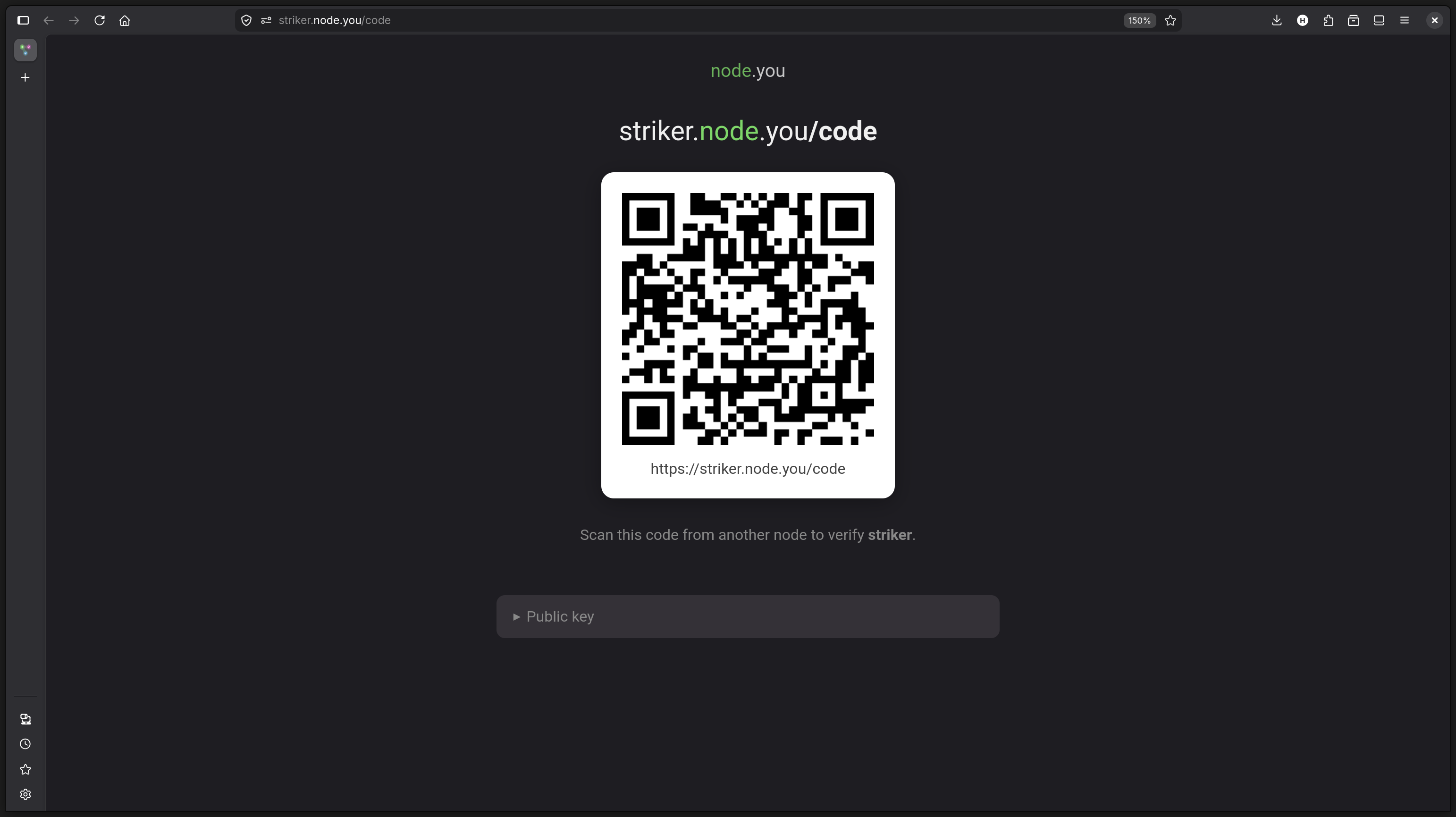
Code scanning to add contacts is a convenience, not a requirement. See the contacts guide to learn more.
Your code URL is always available. Client software obtains your public key from this URL.
Secured against bots
Your node is secured with public-key cryptography. When you create your node, a cryptographic key-pair is generated alongside it to enable verification.
Your public key goes online at your code URL. When someone adds you as a contact, they have the option to verify you. When someone verifies you, their node obtains and stores your public key. This gives their node and connected services a mechanism to validate you.
Your private key is secured either by your host, or you can store it yourself (see key custody below).
Together, your keys can encode signatures. Signatures can be sent to nodes that have obtained your public key (meaning they verified you), and they can validate you without ever seeing your private key: with public-key cryptography, any party that obtains your public key can validate you with just a valid signature.
Users generally do not need to manage signatures manually. The app invokes signature generation and transmission silently on your behalf.
Key custody
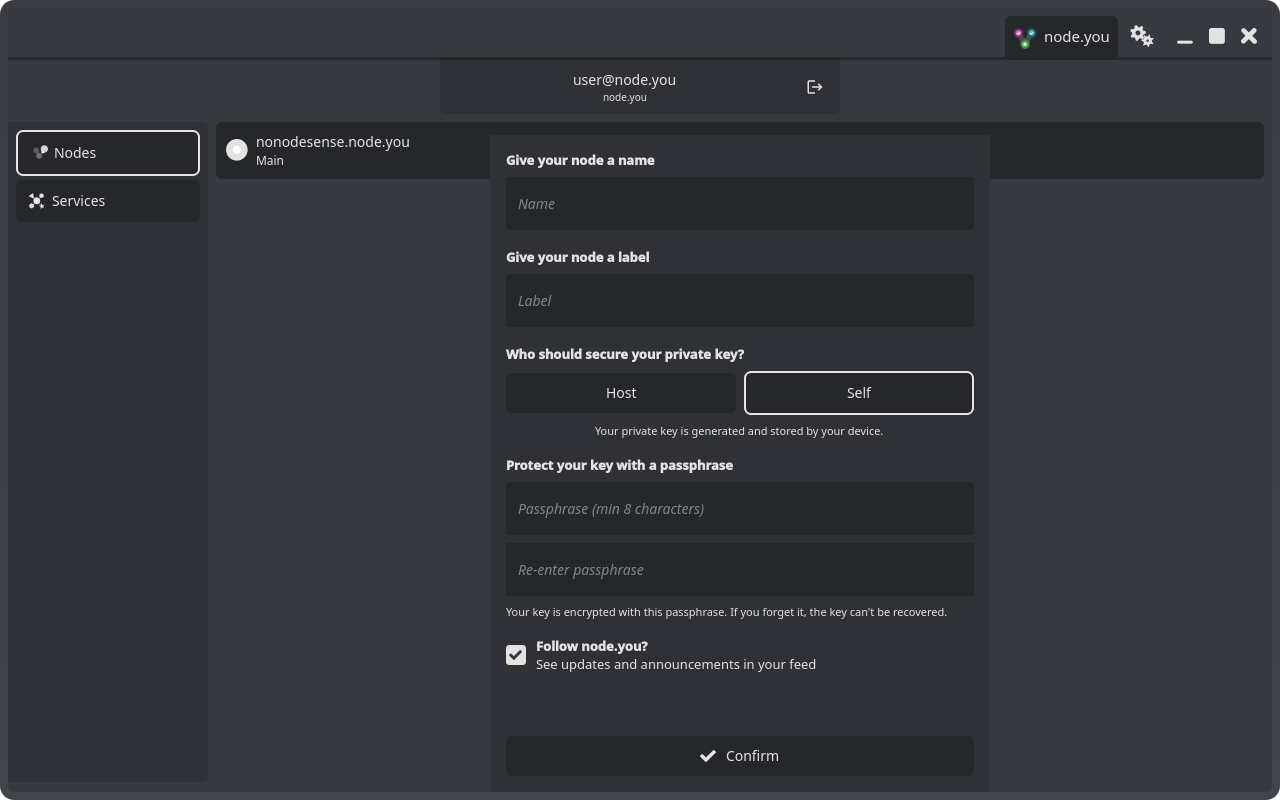
During node creation, you decide who secures your private key: Host or Self.
| Host Custody | Self Custody |
|---|---|
|
|
Both options are available on every platform.
In a browser, self custody also trusts the site serving the app. The desktop and Android apps offer stronger custody.
Creating a self-custody node
Select the Self option when creating your node, then protect your key with a passphrase (minimum 8 characters). Your key is encrypted with this passphrase and stored only in encrypted form.
Right after the node is created, the app requires you to back up your key. You can scan the QR code from another device, copy the encrypted export, or save it as a file. Keep it somewhere safe.
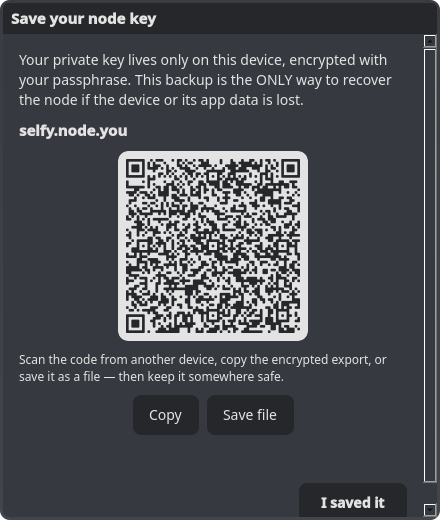
Your backup and passphrase are the only recovery path. A self-custody key lives only on your devices, and a forgotten passphrase cannot be reset or recovered by anyone, including your host.
Unlocking your key
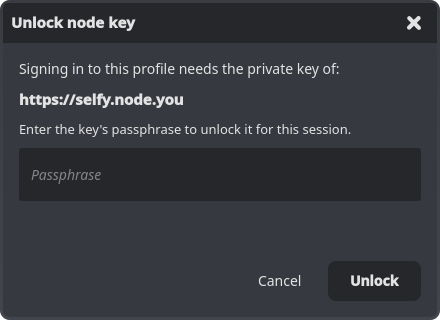
The first time an app session needs your node's signature (signing in to your profile, for example), you are asked to unlock the key with your passphrase. The unlocked key stays available until you sign out or close the app.
Moving to a new device
Open your node and find the Node key section in its sidebar:
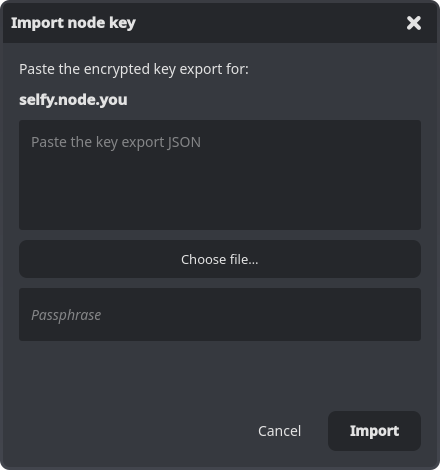
Exportshows the backup dialog again, so you can re-save the encrypted export at any time.Importbrings a key to a device that doesn't have it. Paste the key export, choose the export file (desktop), or scan your backup QR code (Android), then enter the passphrase.
Host-custody nodes need none of this: sign in to your account and every device can use the node right away.
What next?
Consider learning about services that connect to your nodes.
You can also learn about adding contacts or feed aggregation.