A tour of the site configurator: identity, branding, socials, policies, and what a site build produces.
Websites Guide - Docuriser
A website is a directory with a .docuriser-site config at its root. This guide covers the site configurator panel by panel (identity and branding, socials, policies) and what a site build produces. Projects get their own guide.
The Website panel
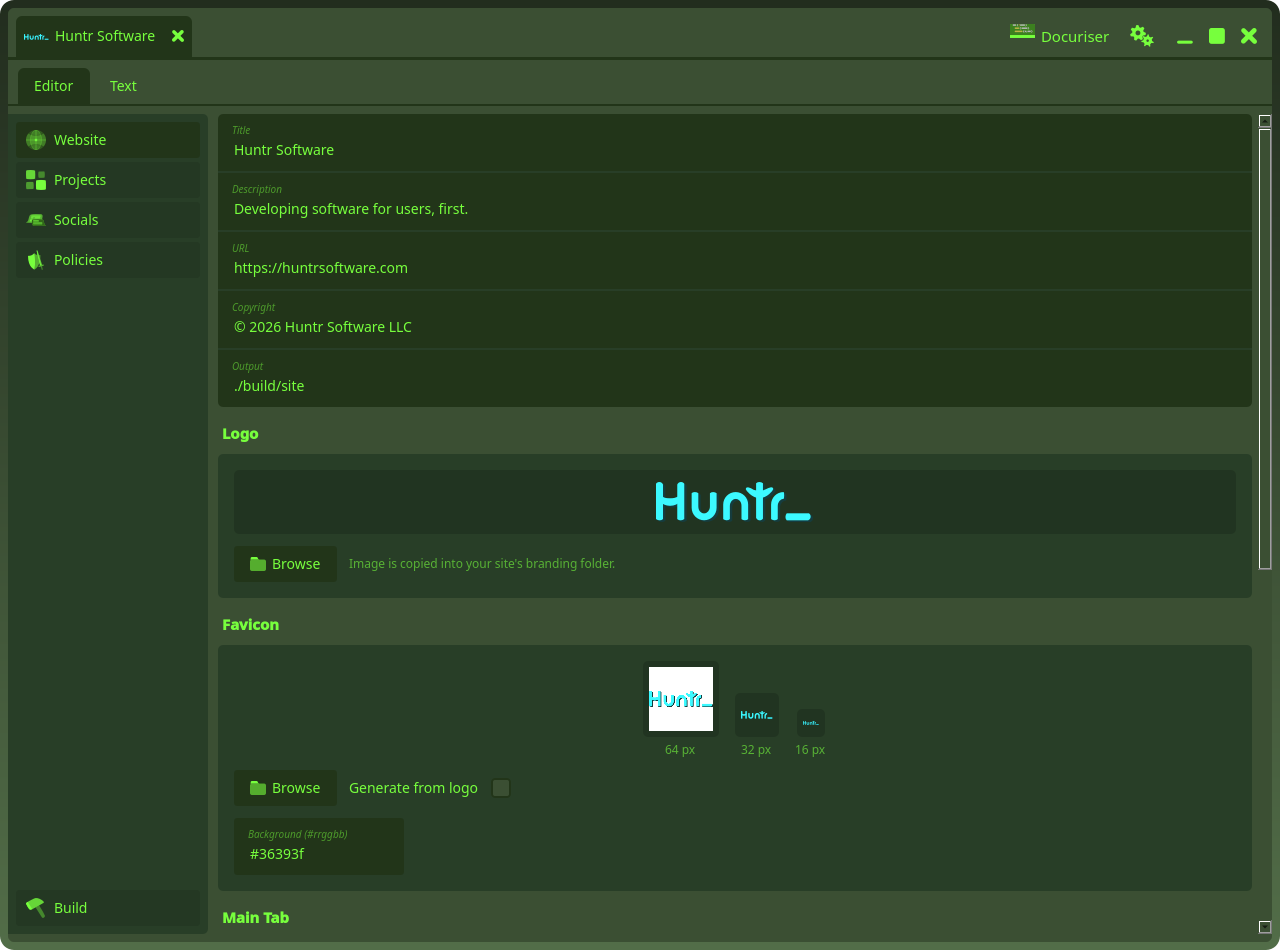
The site's identity lives in five autosaving fields: Title, Description (the site-wide meta description, and the home page's lead line, see Home Page below), URL, Copyright (the footer line), and Output, where builds emit, relative to the site directory (the scaffold seeds ./output).
Logo. Browse to an image and Docuriser copies it into the site's images/ folder and records the web path. Every image picker in the app works this way: images/ is the one home for logos and icons, and configs always reference them by their published /images/… URL, which is simply the file's path under the site. Nothing needs declaring: the whole folder is copied into the built site.
Favicon. One image in, the whole browser-identity set out: check Generate from logo and the favicon derives from the logo above (and re-derives whenever you change it), or Browse to a different image for a distinct mark. Docuriser renders every size a site needs (the classic 16/32 px favicons, a multi-size favicon.ico, the 180 px apple-touch icon, the 192/512 px Android icons) into the site's favicon/ folder, committed with the site like any other file. Non-square sources are centered with transparent padding, and the previews show the real 64/32/16 px results, so small-size legibility is judged by eye, right where you pick. Background fills behind the home-screen icon sizes (iOS composites transparency onto black); it defaults to the site theme's primary surface color and only lands in the config once you edit it.
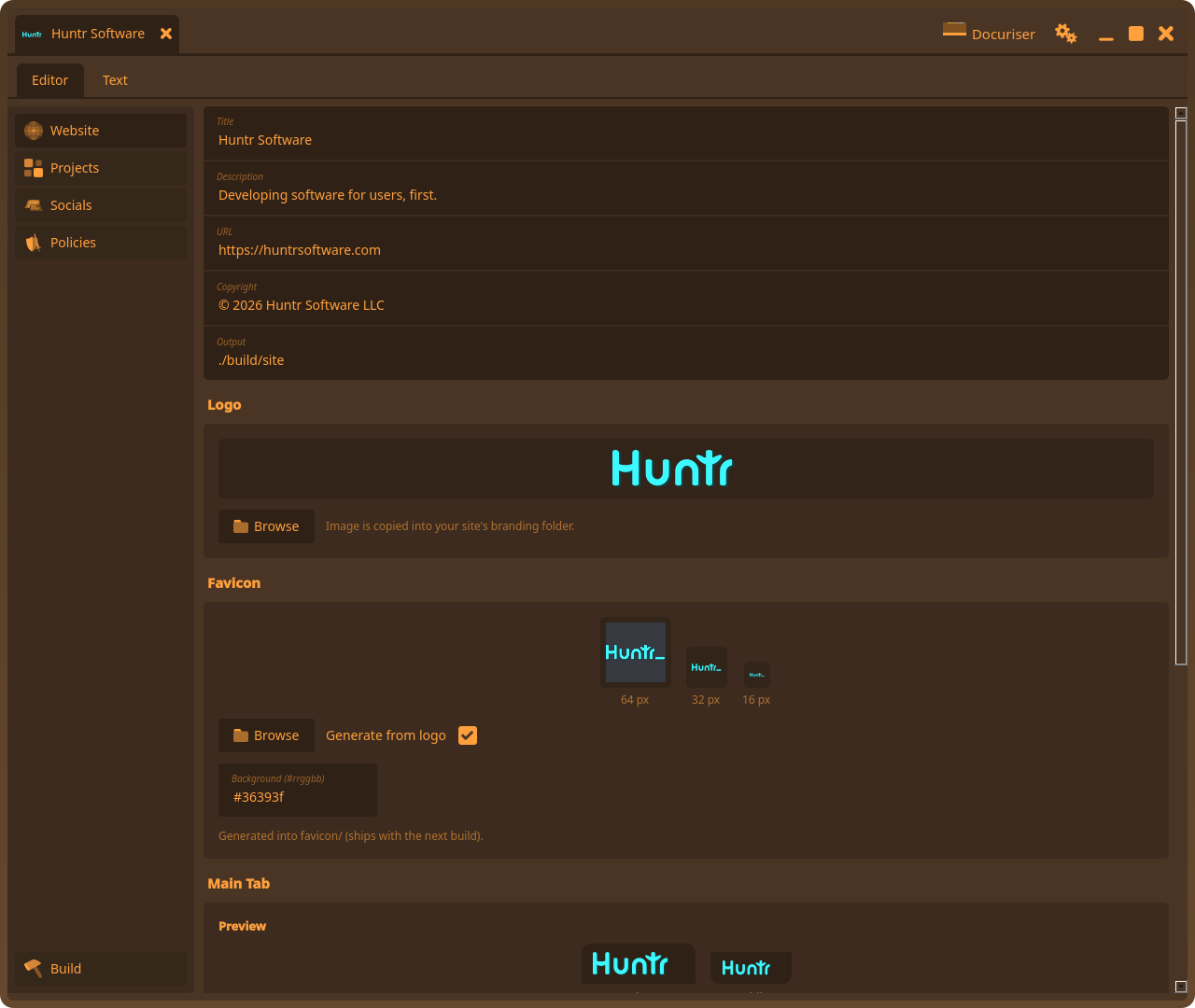
A site with no favicon/ ships Docuriser's default set, and every build derives site.webmanifest (name and colors) from the site's title and theme, so there is nothing else to author. Prefer an external favicon generator? Drop its output into favicon/ under the same file names and the build ships it verbatim.
Main Tab. The brand tab in the built site's titlebar. The live preview shows how the desktop and mobile tabs will render as you adjust Logo Height, Logo Height (Mobile), and Tab Text (text shows when no logo is set).
Home Page
The home page is an ordered stack of sections, edited under Home Page → Layout. Each section is a card; the buttons on the right reorder it (the up/down arrows), remove it (trash), and, for custom sections only, edit its content (the pencil).
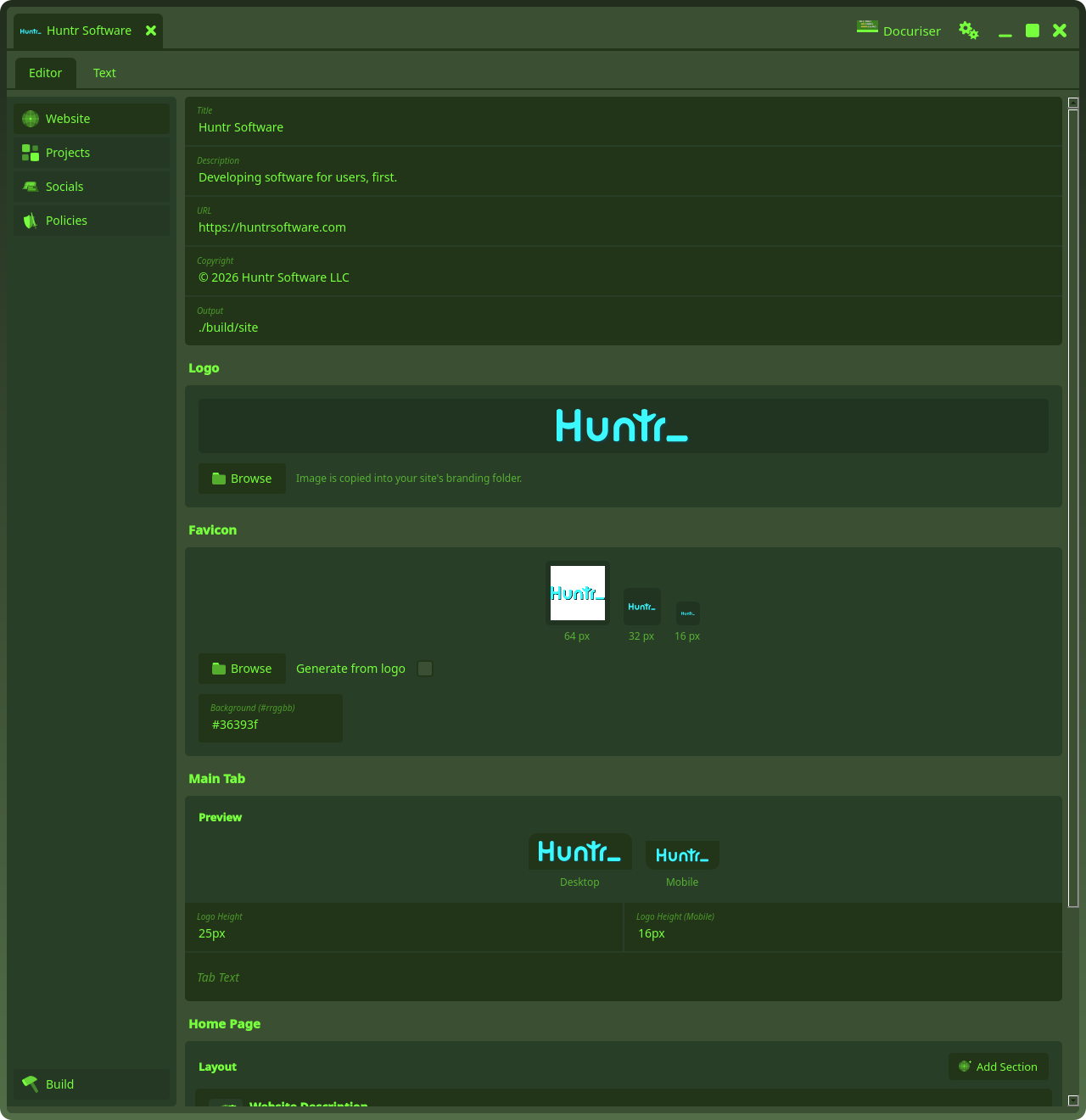
Three sections are presets:
- Website Description renders the site Description field (above) as the home's lead line. Edit the text in that field; there's nothing to author here.
- Projects and Socials render the project and social cards; each appears only once you've added projects or socials.
Add Section offers whichever presets aren't already in the layout, plus a custom option: give it a label, an optional subtext, and an icon (all shown only on the card in this editor; they don't affect the built page), and Docuriser seeds an HTML fragment under content-fragments/ and opens it in a content editor. The pencil reopens that editor anytime; whatever HTML you write there is the section. Removing a custom section leaves its fragment file on disk.
The home layout is independent of the site's navigation: dropping the Projects or Socials section from the home page doesn't remove its nav menu (that's derived from whether the site has projects or socials at all).
Socials
Social links render as cards on the site's socials page, and having any adds a Socials entry to the site's navigation.
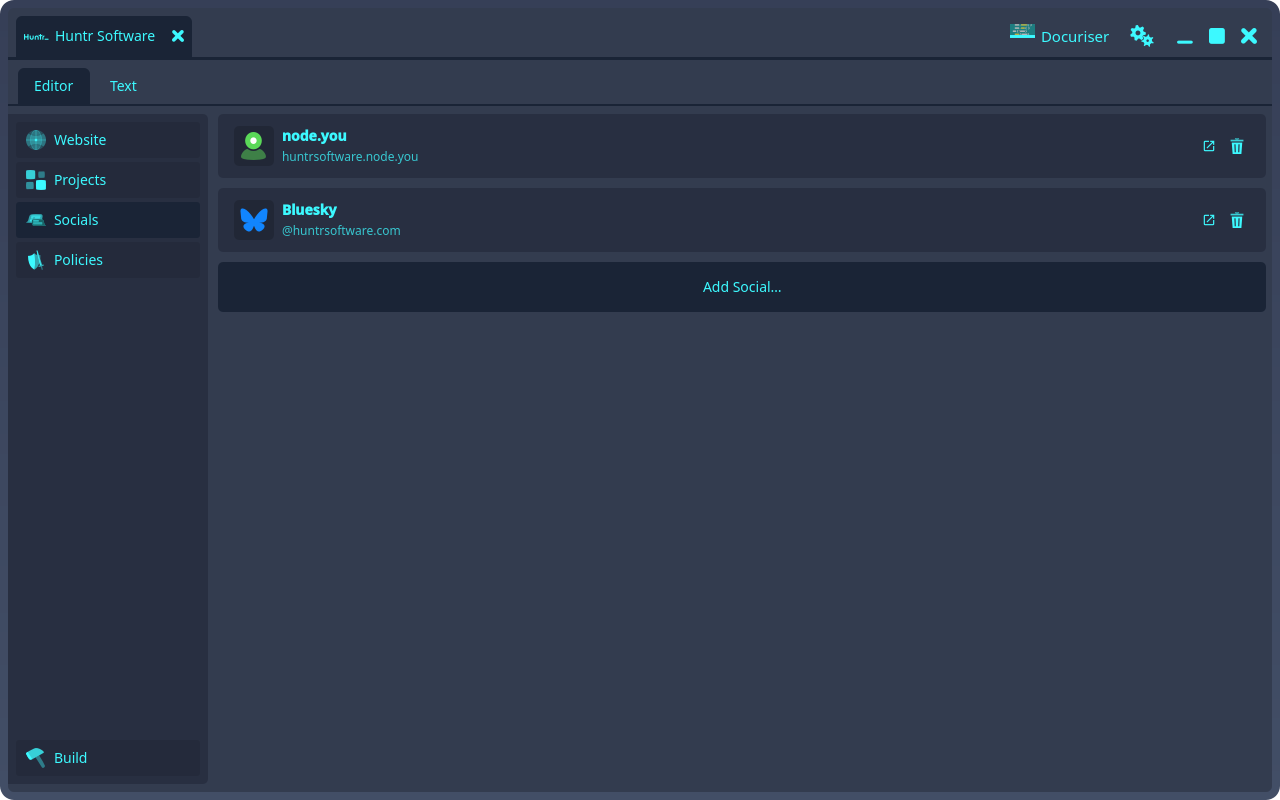
Add Social… asks for a label, an optional username, the URL, an optional icon, and whether the link is external (default: yes, and it renders with an off-site glyph). Clicking a card opens its URL; the trash button removes it after a confirm. The card list mirrors the config's socials[] order.
Policies
Policies are Markdown-backed pages: each entry names a source file in your site directory and publishes it at /<slug>.html. The panel is a file-set editor: a combo box selects the policy, meta fields edit its Name, Page title, and File, and the editor below edits the Markdown itself (manual Save, like every file editor).
Add Policy… asks for a name (the slug mirrors it as you type), an optional page title, and the file path (defaulting to policies/<slug>.md, with a folder button that browses for a file you already have). It creates the file if missing, seeded with a heading, leaves an existing one untouched, and, with Add to footer checked, as it is by default, adds a matching footer link. Removing a policy is symmetric: the confirm tells you the footer link goes with it. The Markdown file always stays on disk.
(Project licenses live with each project's source, not the site: see the License panel in the projects guide.)
Building the site
The Build panel's Build button runs the whole site build, streaming its log live (check Advanced Logging for the verbose lines). Under the hood the app shells out to docuriser-cli site build --porcelain, so a scripted build is byte-for-byte the same; see the CLI guide. Output Directory opens the result in your file manager.
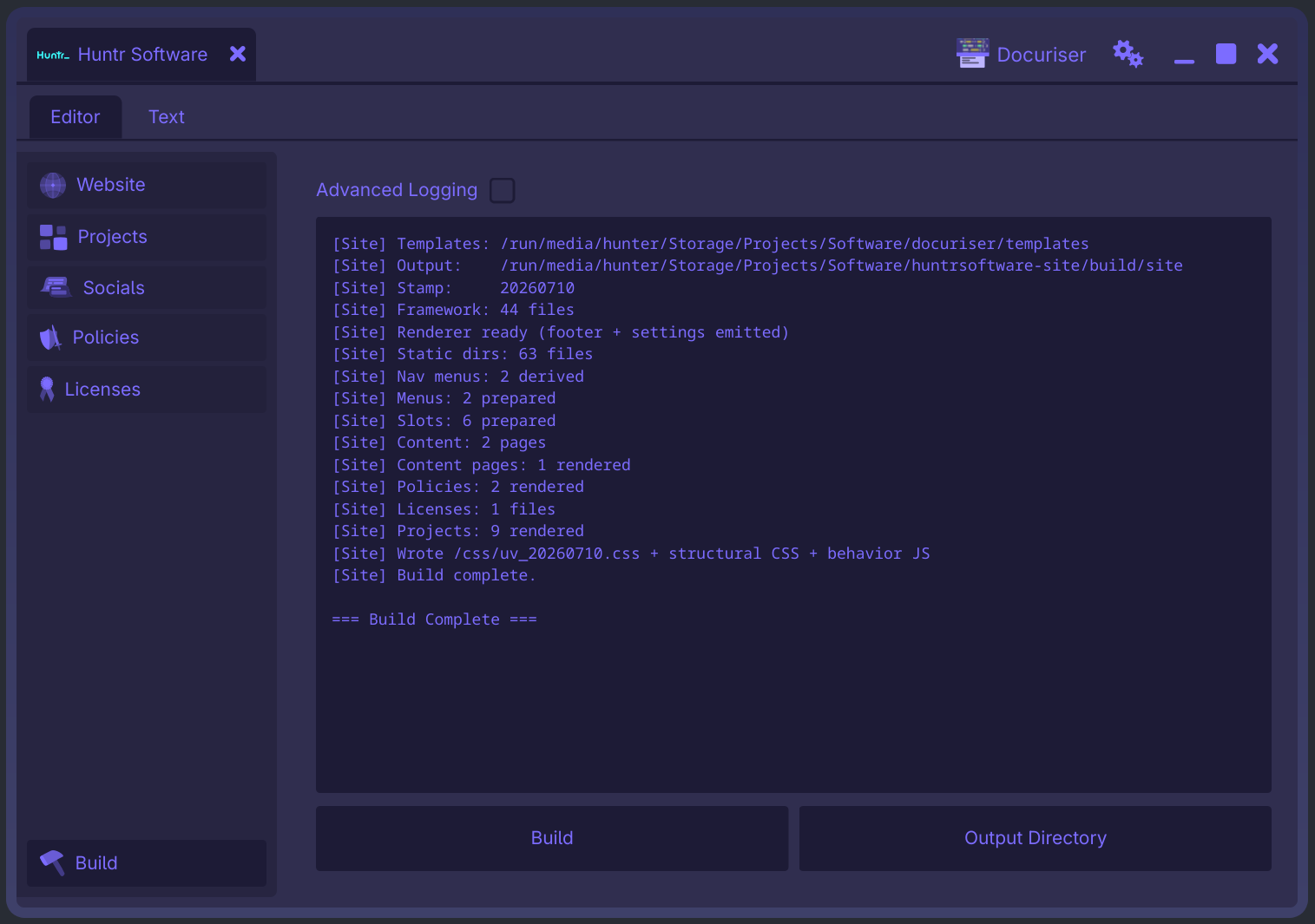
What comes out is a fully static site: the home page, a page per project at /<slug>.html, policy pages, the socials page, and each project's built documentation under /<project>/docs/<version>/ (plus a docs/latest symlink to the latest built version, the anchor for unversioned docs links, see the versions guide). Pages are self-contained with relative URLs: open index.html straight from disk, or point any static host at the output directory. Styling and behavior ship as a few stamped uv_* CSS/JS assets; your images/ directory is copied to /images, and any other verbatim content is staged by the config's static_dirs overlays.
Site navigation is derived at build time from what the config declares (projects and socials menus, footer links), so there is nothing to keep in sync by hand.