Learn how to author a project's guide pages: the Topics panel, images beside Markdown, and how topics publish per version.
Topics Guide - Docuriser
Topics are a project's guide pages: Markdown files in your source checkout, listed in the repository's .docuriser manifest, and rendered into each built version's documentation with a sidebar entry apiece. This page, like every page in this documentation, is a topic. Here's how to author them.
The Topics panel
The project configurator's Topics panel is a file-set editor: a combo box selects the topic, meta fields edit its manifest entry, and the editor below edits the Markdown source itself (manual Save; switching topics with unsaved text asks before discarding).
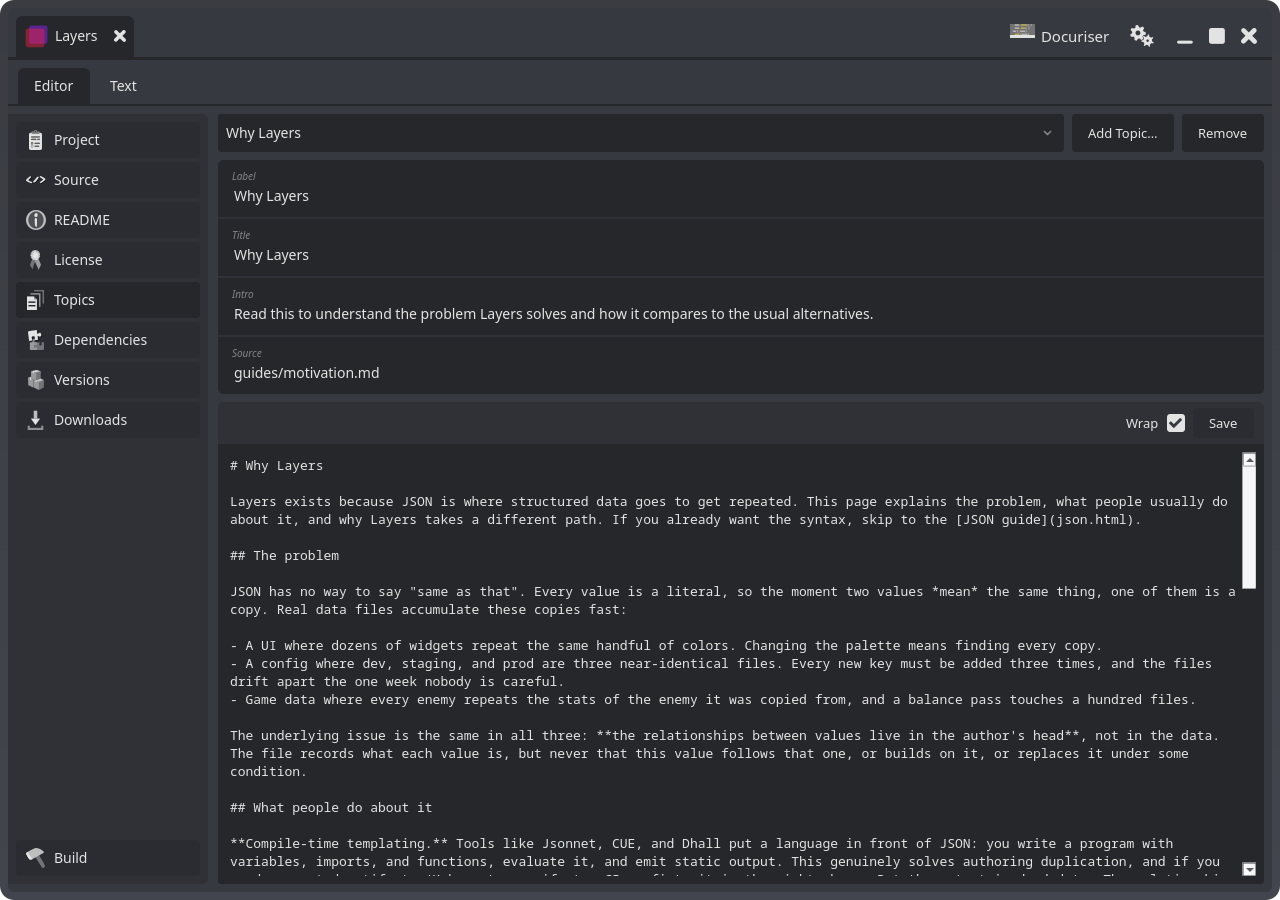
The meta fields per topic:
- Label: the sidebar name in the built docs.
- Title: the page title lead (defaults to the label).
- Intro: an optional paragraph rendered above the topic.
- Source: the Markdown file, relative to the project's source root; editing it re-points the editor live.
The topic list lives in the .docuriser manifest at your repository root, versioned with the code (see the configuration reference), so each tagged release carries the topic list that matches it. The panel edits the manifest in place, and a repository's first topic creates the file.
Adding a topic
Add Topic… asks for the label (the slug mirrors it), an optional page title and intro, and the source path, defaulting to guides/<slug>.md, the house convention. If the file doesn't exist, Create seeds it with its title heading so the editor opens ready to type. The folder button beside the path browses for a file that already exists, written back relative to the source root: Create never touches a file it finds, so pointing a topic at Markdown you already wrote adopts it as it is. Remove drops the manifest entry after a confirm; the Markdown file always stays on disk.
Writing a topic
Start with an H1 title and use ## sections for the steps or subtopics; the pages in this documentation are the pattern. Fenced code blocks render with syntax highlighting. Topics of the same version are published as sibling pages, so cross-link them by slug: [versions guide](versions.html).
Images and local resources
Reference images relative to the Markdown file, keeping them in an images/ folder beside your guides:

When a version builds, Docuriser carries every referenced local file along with the page: the file is copied flat beside the generated page and the reference is rewritten to its bare filename, so the published page works even opened straight from disk. Obsidian-style wiki embeds ([[image.png]] with a leading !) are supported too, normalized to standard image syntax on the way through. External URLs (http://…) are left untouched, and a #fragment or ?query suffix doesn't confuse the resolver.
Because carried files are flattened to their basename, prefix image names with their topic (images/<topic>-<n>-<what>.png) so two topics can't collide on a generic name like screenshot.png (colliding basenames would silently overwrite each other in the version's output).
How topics publish
Topics build per version, from the tag: building a version (see the versions guide) snapshots the minor's latest tag and renders each topic entry in the snapshot's manifest into the version's bundle, and the site build publishes them under /<project>/docs/<version>/<slug>.html with the sidebar listing every topic by label. The intro paragraph, when set, renders between the title and your Markdown.
That means topic edits reach the site the same way code does: commit, tag a patch release, and rebuild the version that should carry them. Editing here changes your working tree only; old versions keep rendering the topics their own tags declared.