Follow this guide to add a project and work through its panels: identity, source, README, dependencies, and downloads.
Projects Guide - Docuriser
A project is a .docuriser-project config that a site registers. It names the project, points at your local source checkout, and declares everything the project's page shows: facts, repository, dependencies, downloads, README, topic guides, and versions. This guide covers adding a project and working through its configurator panels.
Adding a project
From the site configurator's Projects panel, click Add Project…. Give it a name (the slug mirrors it as you type) and an optional tagline.
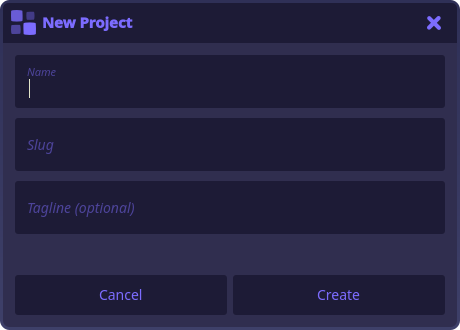
Create scaffolds projects/<slug>/.docuriser-project inside your site, registers it in the site's project list, and opens it in a tab. Each card on the Projects panel opens its project the same way; the trash button removes a project from the site's registry after a confirm. Config files always stay on disk, so removal is reversible.
The panel also keeps you honest: project configs that exist under projects/ but aren't registered are listed under On disk, not in this site, each with an Add to site button.
The Project panel
The project's identity: Slug (its URL segment: lowercase, dash-separated), Name, and Tagline. The Logo picker works like the site's: the image is copied into the site's images/ and referenced by URL.
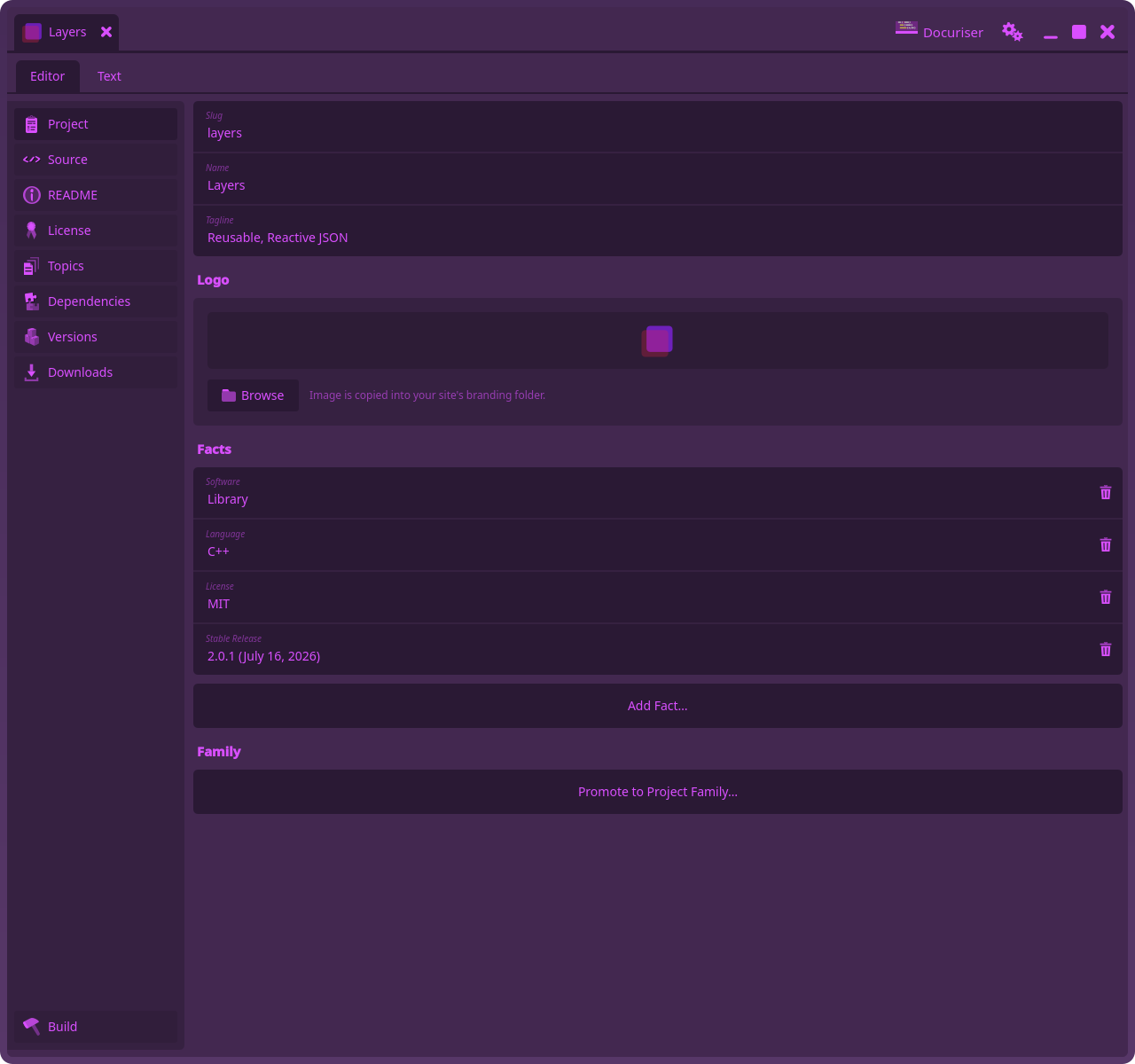
Facts are the labeled rows in the project page's sidebar. Add Fact… takes a label and value plus an optional link URL and note. One convention worth knowing: a fact labeled License (e.g. MIT) is what seeds a new version's license display name when you include it in the Versions table (the license text itself comes from the License panel's file, below); see the versions guide.
A fact can also be derived instead of typed: an entry carrying "preset": "stable_release" (added via the config's Text view for now) always shows the project's latest built version and its release date. Its row here renders that derivation read-only, and the site keeps it current on its own; which version is "latest" is never authored, see the versions guide.
A lone project also offers Promote to Project Family… here; the families guide covers that.
The Source panel
Path is the project's local source root: where your actual checkout lives, relative to the project's config directory (e.g. ../../../myproject). Everything build-shaped resolves through it. The checkout's git tags are what the Versions table lists, and the build recipe itself (README path, license path, topics, include directories) lives in a .docuriser manifest at that root, versioned with your code; the README, License, and Topics panels edit it in place (see the configuration reference). Set the path first; those editors follow it live.
Repository fills the repo card on the project page: platform, Owner/Repo path, and URL (the card's icon is Docuriser's stock repository glyph). If the config has no repository yet, an Add Repository button reveals the form.
The README panel
Path names the project's README relative to the source root (conventionally README.md). The editor below edits the real file in your checkout, with a status line, a Wrap toggle, and a manual Save.
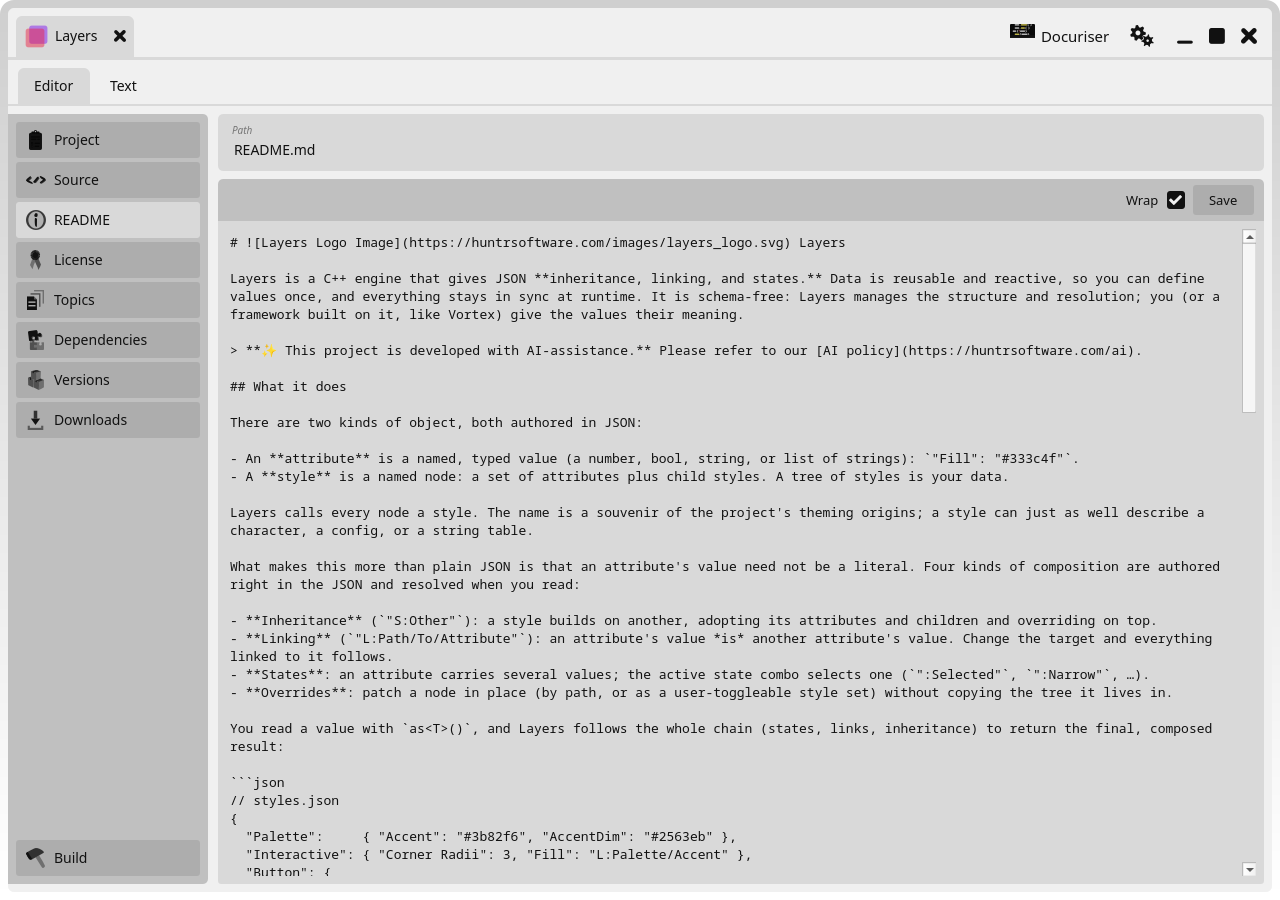
If the file doesn't exist yet, a Create button appears (once a source path is set): it writes an empty file at the configured path, never overwriting anything, and unlocks the editor.
Remember the release discipline: this editor edits your working tree, and published docs build from tags. A README fix reaches the site by committing it and tagging a patch release (2.1.4), which flips the version to Pending for a rebuild; see the versions guide.
At site build, the README of the project's latest built version renders on the project's landing page. Since that same file is also your code-host landing page, reference images by absolute URL (the convention the published site's own projects follow, e.g. https://yoursite.com/images/…) so they resolve in both places.
The License panel
The README panel's anatomy for the project's license: Path names the license file relative to the source root (conventionally just LICENSE; it need not be Markdown), and the editor edits the real file in your checkout. A Create button appears when the file doesn't exist yet.
The license lives with your source, so each version build snapshots it into the version's bundle: the version gets a license page showing that text, under the display name of its license_display (seeded from the License fact at include time). Old versions keep the license they shipped with; relicensing a project only affects versions tagged after the change. The same release discipline as the README applies: the published page builds from tags, not the working tree.
Dependencies
Dependency cards render in the project page's sidebar. Add Dependency… takes a name, a URL, an optional icon, and an external flag (default on). Use a site-relative URL like /vortex.html for a dependency that's another project on your site, and an absolute URL for external ones; clicking a card in the panel opens absolute URLs in your browser.
Downloads
Download rows give the project page per-platform download links: a URL, a platform label, an optional icon and size. Docuriser doesn't manage the artifacts themselves. Place the files under a directory your site stages (e.g. a downloads/ overlay in the site's static_dirs) and point the URL at it, like /downloads/MyApp/MyApp-1.0.zip. Platform icons are ordinary site images: drop them in the site's images/ and reference them as /images/windows.svg.
Next steps
Write the project's guides in the topics guide, then tag a release and include the version in the versions guide to publish its documentation.