Registration gating, invites, service allowances, and managing servers from the Admin pane.
Network Administration - node.you
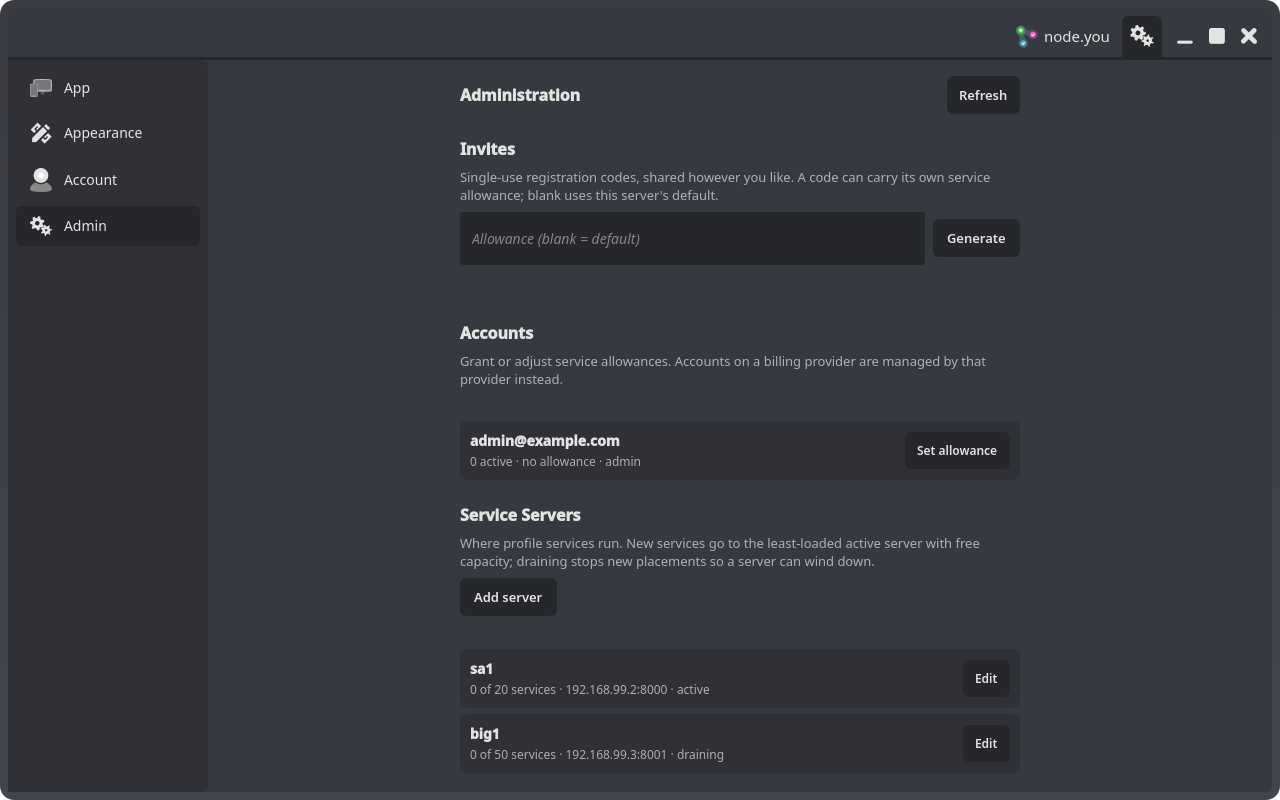
Running a network means deciding who can register, who may run services, and where those services live. All of it is driven from the client app's Admin pane, a Settings tab that appears for any signed-in account whose email is in the deployment's ADMINS list. (The same operations are available as /api/admin/* endpoints in your deployment's Swagger UI at https://yourdomain.site/api/docs, if you prefer curl.)
Who gets an account: registration modes
REGISTRATION_MODE in the coordinator's .env controls self-registration:
open: anyone who can reach your domain can register. This is node.you's own mode.invite: registration requires a single-use invite code. The app reveals an invite field automatically when it probes an invite-mode host.closed: no self-registration at all.
Emails listed in ADMINS always bypass gating, so the first admin account on a gated deployment can simply register itself.
Invites
In invite mode, the Invites section generates the codes. Each code is single-use; unused codes can be revoked, and used or revoked codes stay listed (dimmed) as an audit trail. A code can carry its own service allowance, which overrides the deployment default for the account it creates; leave the field blank to use DEFAULT_SERVICE_ALLOWANCE. Distribution is up to you: copy the code and send it however you like.
Who may run services: allowances
On an unmetered network there is no billing, so service entitlements are allowances: a per-account count of how many services the account may activate. An account gets an allowance three ways:
DEFAULT_SERVICE_ALLOWANCEseeds one at registration (0 means none).- An invite code with its own allowance overrides that default.
- You grant or adjust one from the Accounts section:
Set allowanceon any row.
Accounts with an allowance see an Activate button when launching a service, instead of a checkout button. Setting an allowance to 0 removes the grant. Lowering an allowance below what an account already runs tears nothing down; it only blocks new activations, and the pane reports the overage so you can act deliberately.
Accounts managed by a billing provider (Stripe or Google Play) hide the allowance button, and the server refuses grants for them: a grant would conflict with live billing state.
Where services run: service servers
The Service Servers section manages the machines profile containers run on. Each row shows load (N of M services), the agent address, and status. Placement is automatic: a new service goes to the least-loaded active server with free capacity.
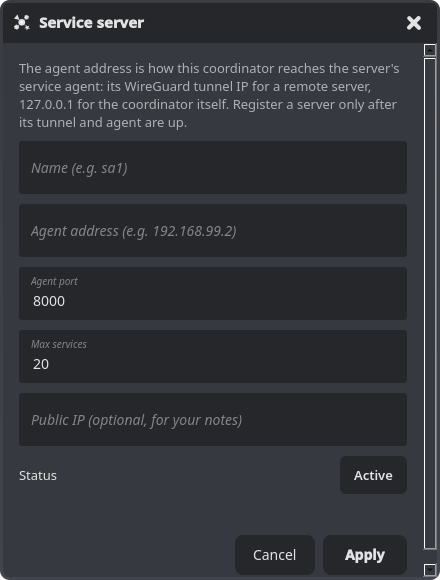
- Add server registers a new machine after its tunnel and agent are up; see Adding Service Servers for the full procedure.
- Edit changes a server's capacity, address, or status. Capacity (
Max services) is per-server, so differently sized machines simply get different numbers. - Status cycles between
active(accepting new services),draining(existing services keep running, nothing new is placed; use this to wind a server down), andoffline.
A single-server network needs nothing here: the coordinator's own main row ships with the database.
Reports
User-submitted content reports arrive at the coordinator (/api/admin/reports). They are currently reviewed via the Swagger UI rather than the Admin pane.